
Staff Management
Last updated: 2026-04-12
This guide explains how to manage your staff on Rixa so bookings are assigned correctly.
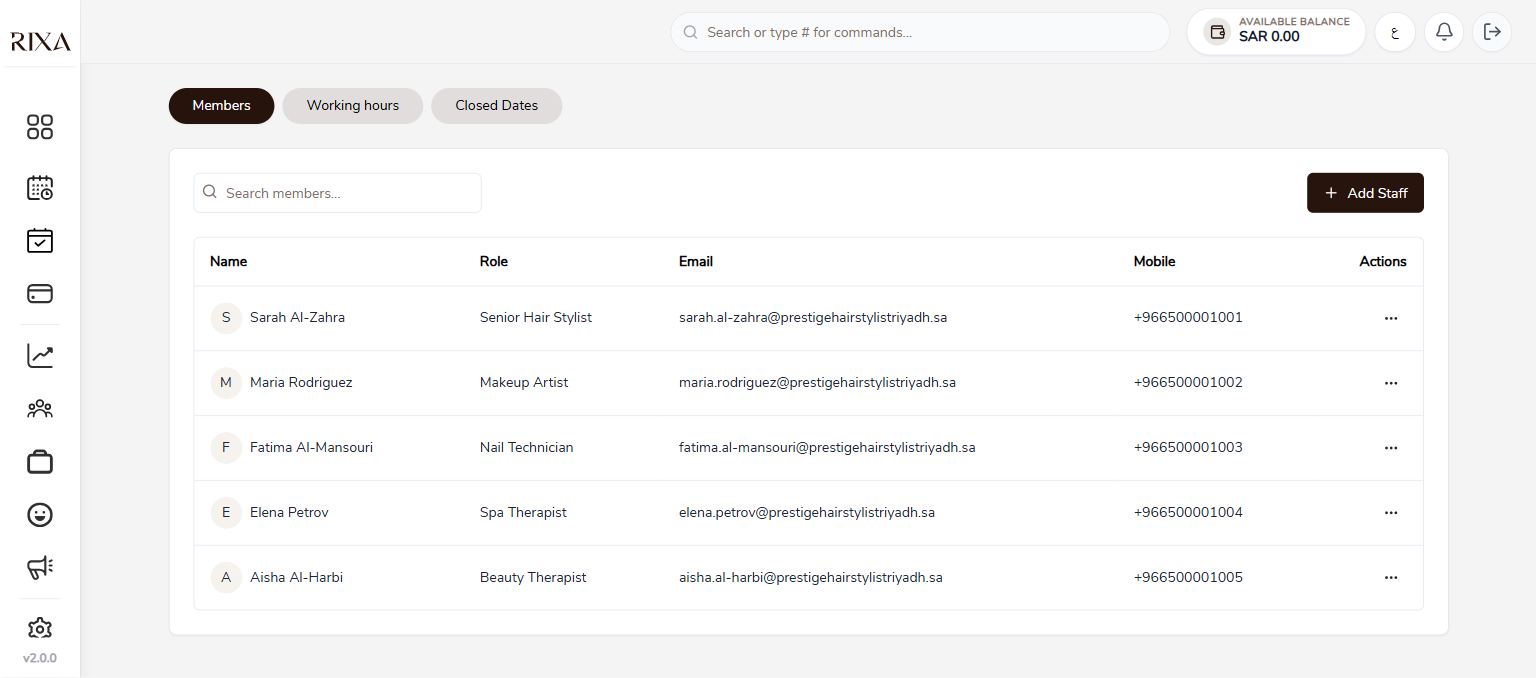
Freelancer shortcut: During onboarding, freelancers can tap "I'm the only staff member" to skip staff setup entirely. The system creates your staff profile automatically. You can always add more team members later from this page.
Adding Staff
Go to Staff in your app or backoffice and tap Add Staff Member. Enter their name, phone number, and any other details. They will receive an invitation to join your team.
Assigning Services
After adding a staff member, assign them the services they can perform. Only assigned services will be available for booking with that specific person.
Setting Working Hours
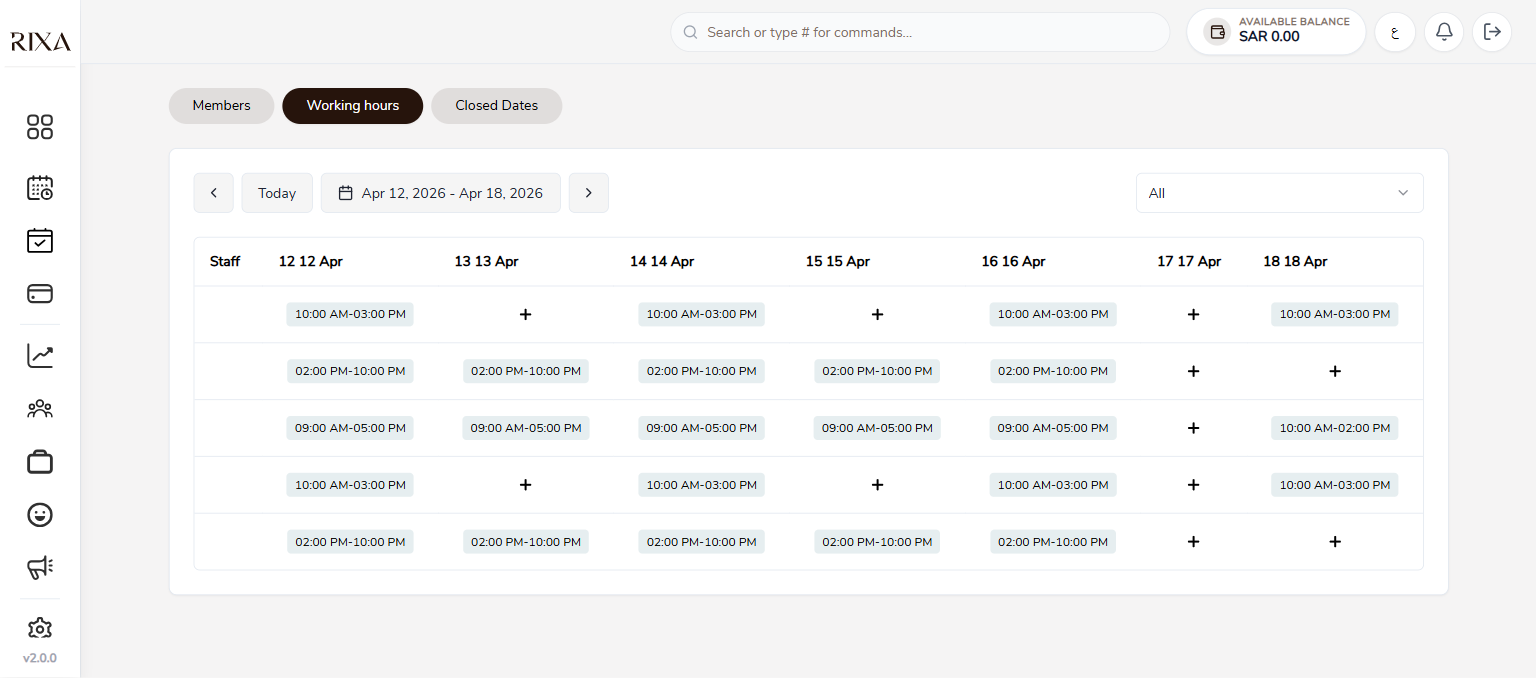
Each staff member can have their own working hours that may differ from the business hours. Go to a staff member's profile and set their daily schedule. This ensures they only appear as available during their actual working times.
Staff Visibility
You can control whether a staff member is visible to customers. When visible, customers can select them specifically when booking. When hidden, they can still be assigned to bookings internally but will not appear as a selectable option.