
Service Setup
Last updated: 2026-04-16
This guide covers adding services to your Rixa profile and configuring them properly.
Tip: During onboarding, you can use Quick Add to pick services from the Rixa catalog, select categories, and set pricing in bulk. After onboarding, the full service setup described below is available from the main Services page in your app or backoffice.
Viewing Your Services
Go to Services in the sidebar. Your services are grouped by category, showing the service name, duration, and price.
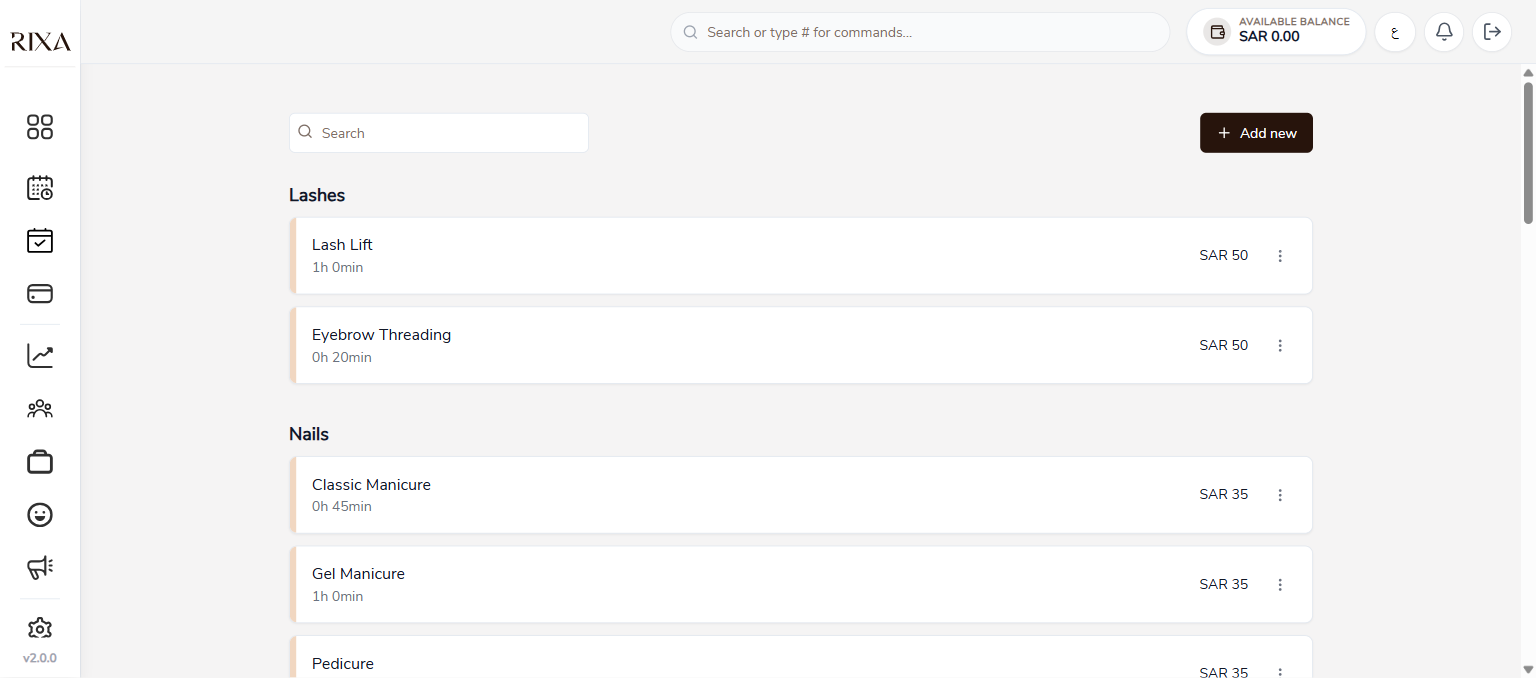
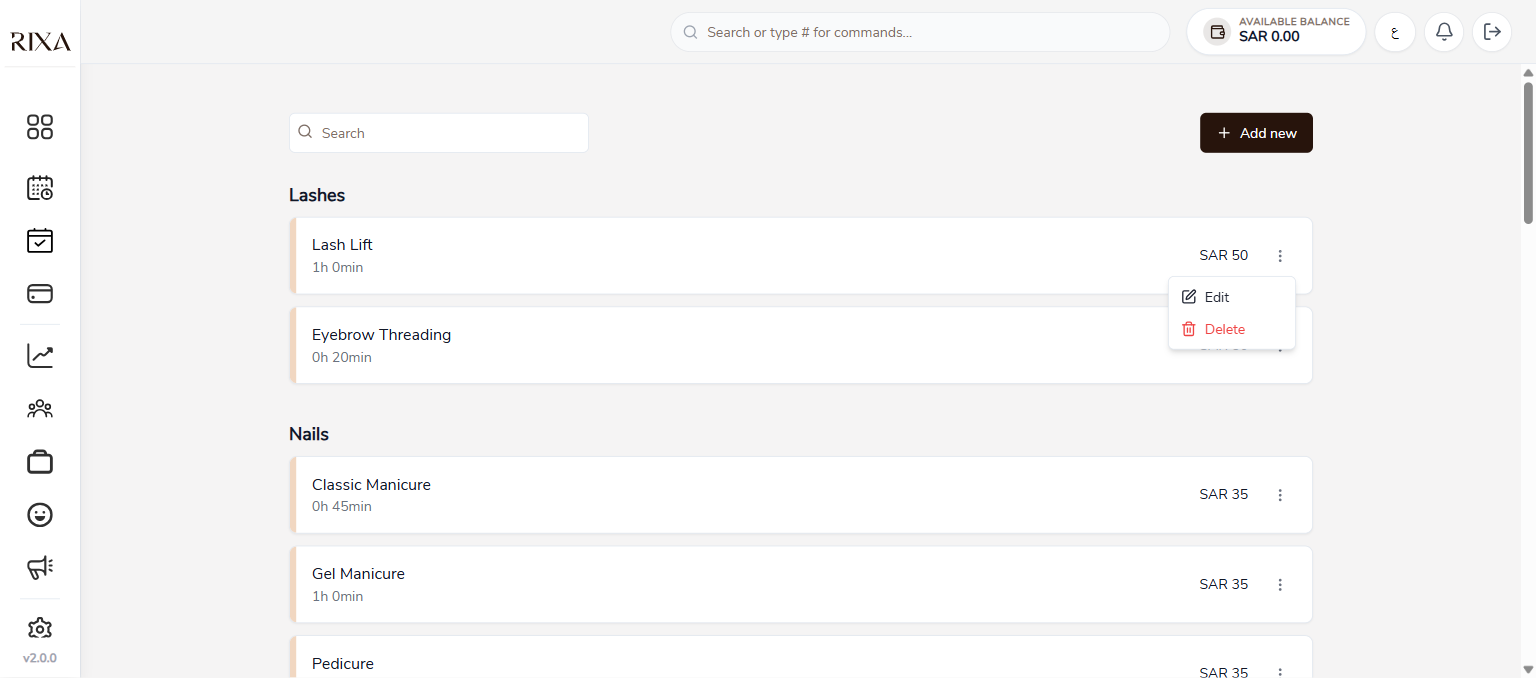
From here you can search for a service, or click the three-dot menu on any service to Edit or Delete it.
Adding a New Service
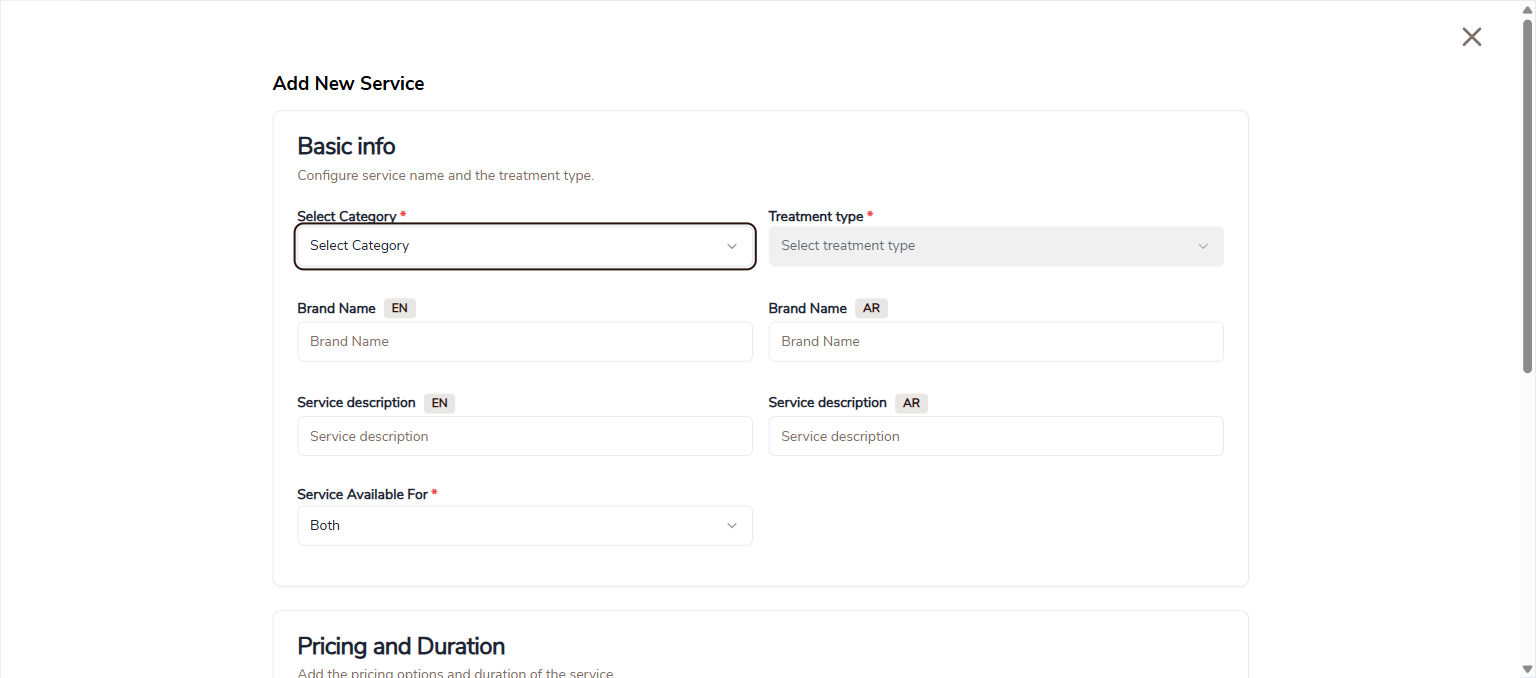
Click + Add new in the top right corner. The Add New Service form has two sections:
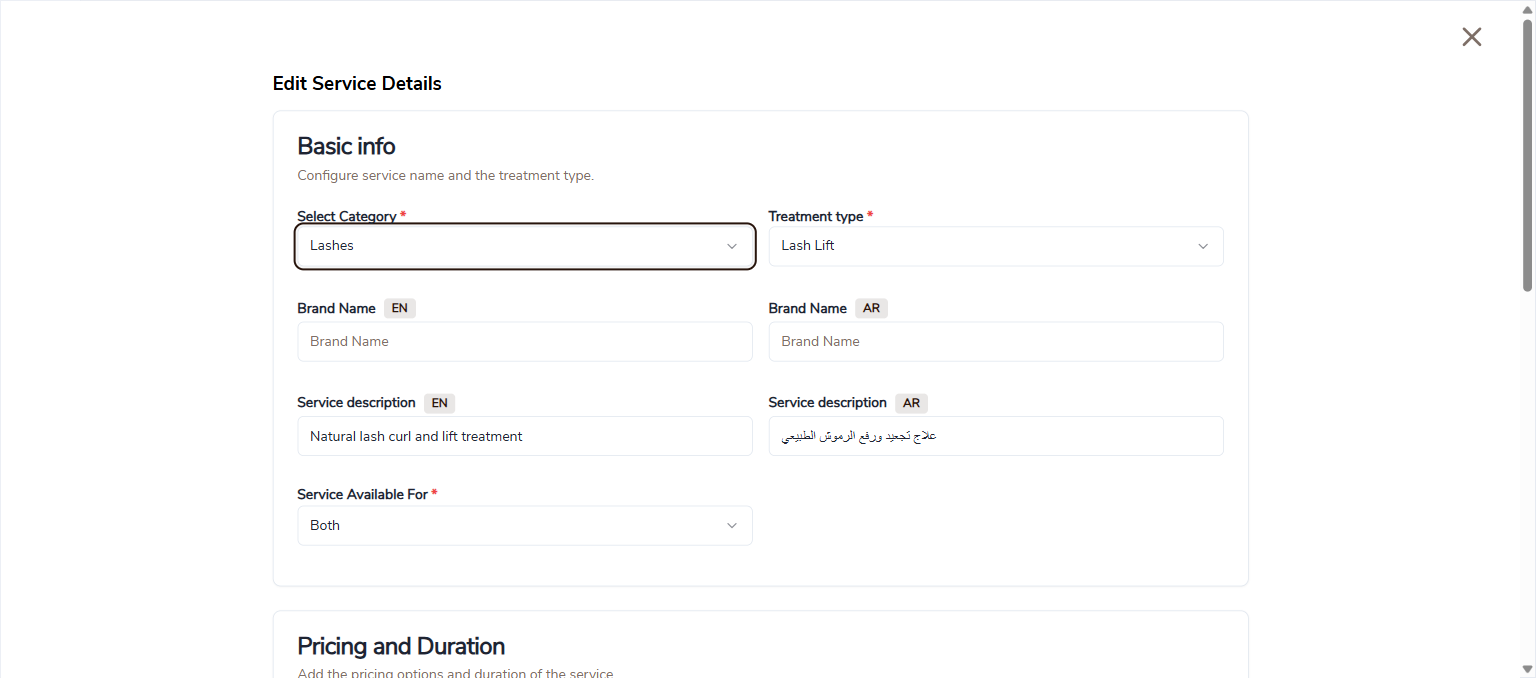
Basic Info
Fill in the service details:
- Select Category — choose the category this service belongs to (e.g., Lashes, Nails, Hair Removal)
- Treatment type — select the specific treatment within the category
- Brand Name (EN/AR) — optional brand name in both languages
- Service description (EN/AR) — a brief description of the service in both languages
- Service Available For — choose Salon, Home, or Both
Pricing and Duration
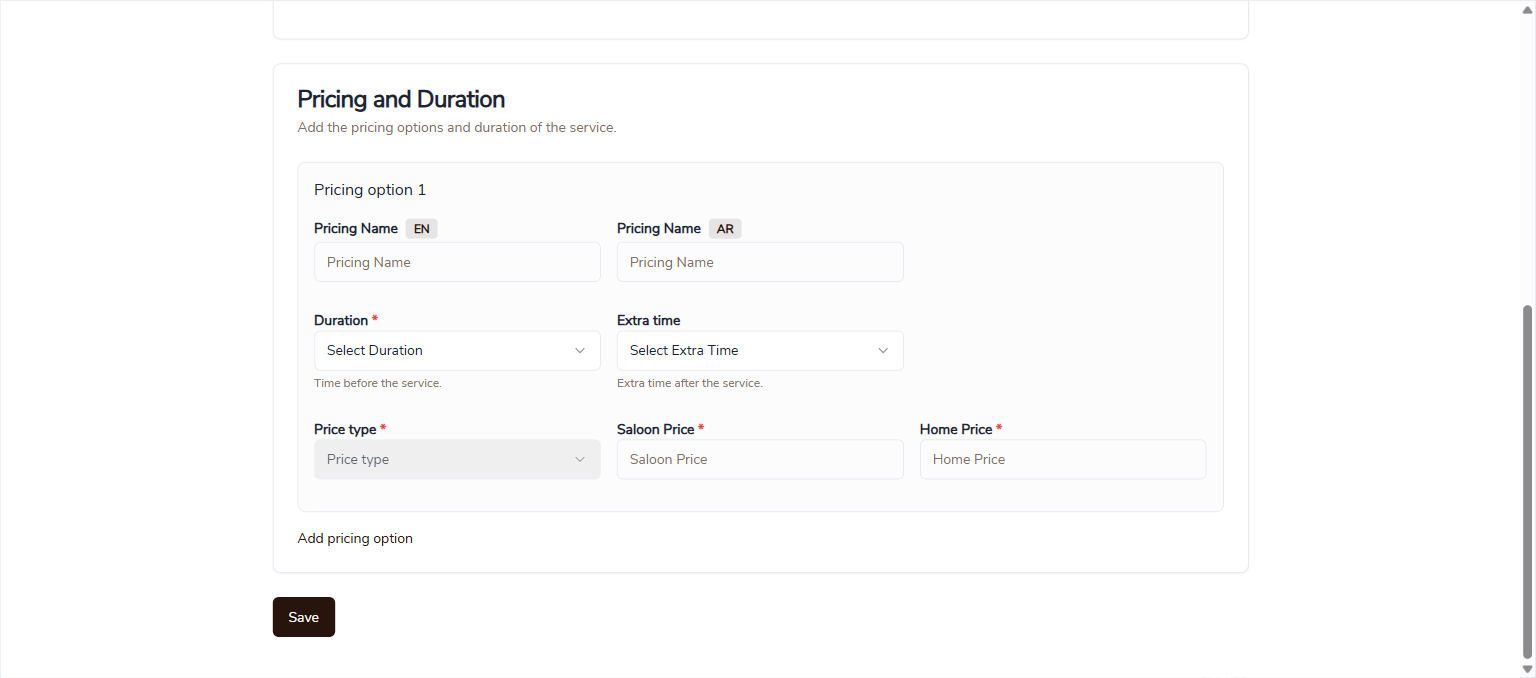
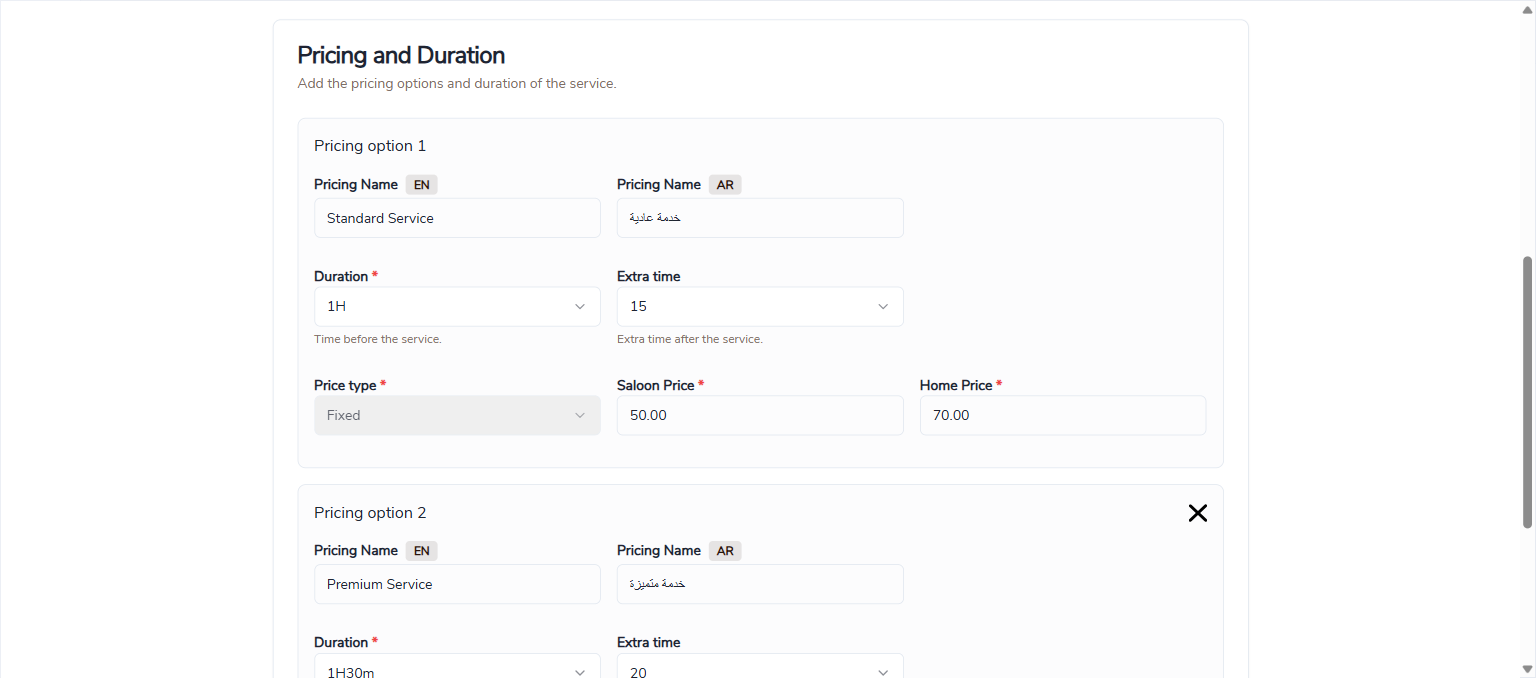
Set the pricing options for the service:
- Pricing Name (EN/AR) — name for this pricing tier (e.g., "Standard Service", "Premium Service")
- Duration — how long the service takes (used for scheduling and preventing double bookings)
- Extra time — buffer time after the service
- Price type — Fixed or Variable
- Saloon Price / Home Price — set different prices for salon and home visits
You can add multiple pricing options by clicking Add pricing option (e.g., Standard and Premium tiers).
Editing a Service
Click the three-dot menu on any service and select Edit. The edit form shows all current values pre-filled, including the pricing tiers.
Here you can see the pricing options with filled-in data — including multiple pricing tiers with different durations and prices for salon and home visits.
Home vs Salon
When adding a service, indicate whether it is available for salon visits, home visits, or both. Services marked for home visits will appear when customers search for providers that come to their location. You can set different prices for each.
Online Booking Toggle
Each service has an online booking toggle, which is on by default. Turning it off hides the service from customers entirely — it no longer appears on your profile and cannot be booked through the app. Use this when a service is temporarily unavailable or you want to pause it without deleting it. Any bookings already placed for that service are unaffected and can still be completed, cancelled, or rescheduled as normal.
Ordering
You can drag and reorder your services to control how they appear on your profile. Place your most popular or flagship services at the top.
Per-Service Cancellation Policy
Every service on your profile uses your business-wide cancellation policy by default (set under Settings → Cancellation Policy). For most services that default is the right fit. But some services need stricter rules — bridal makeup, full-day packages, or any high-value booking where a late cancellation or no-show costs you more than usual.
For those cases, you can override the default on a single service without changing your business-wide settings.
When to Override
Use a custom policy when the service:
- Requires significant prep time or materials (e.g., bridal trials, chemical treatments)
- Blocks a large portion of your day (e.g., full-day packages, multi-staff bookings)
- Is priced high enough that a standard penalty does not cover your loss from a no-show
How to Enable
- Open the service in Services and click Edit.
- In the edit form, toggle Custom cancellation policy on.
- Enter the values for this service:
- Late cancellation penalty (%) — percentage charged when a customer cancels after the free window.
- No-show penalty (%) — percentage charged when a customer does not show up.
- Save the service.
When the toggle is off, the service falls back to your business default automatically. You can turn it off anytime — any bookings already placed keep the policy that was active when they were created.