
Availability & Scheduling
Last updated: 2026-04-12
This guide covers how to set your availability so customers see accurate time slots.
Business Hours
Set your regular operating hours for each day of the week. Go to Settings, then Business Hours, and configure your opening and closing times. Days without hours set will show as closed.
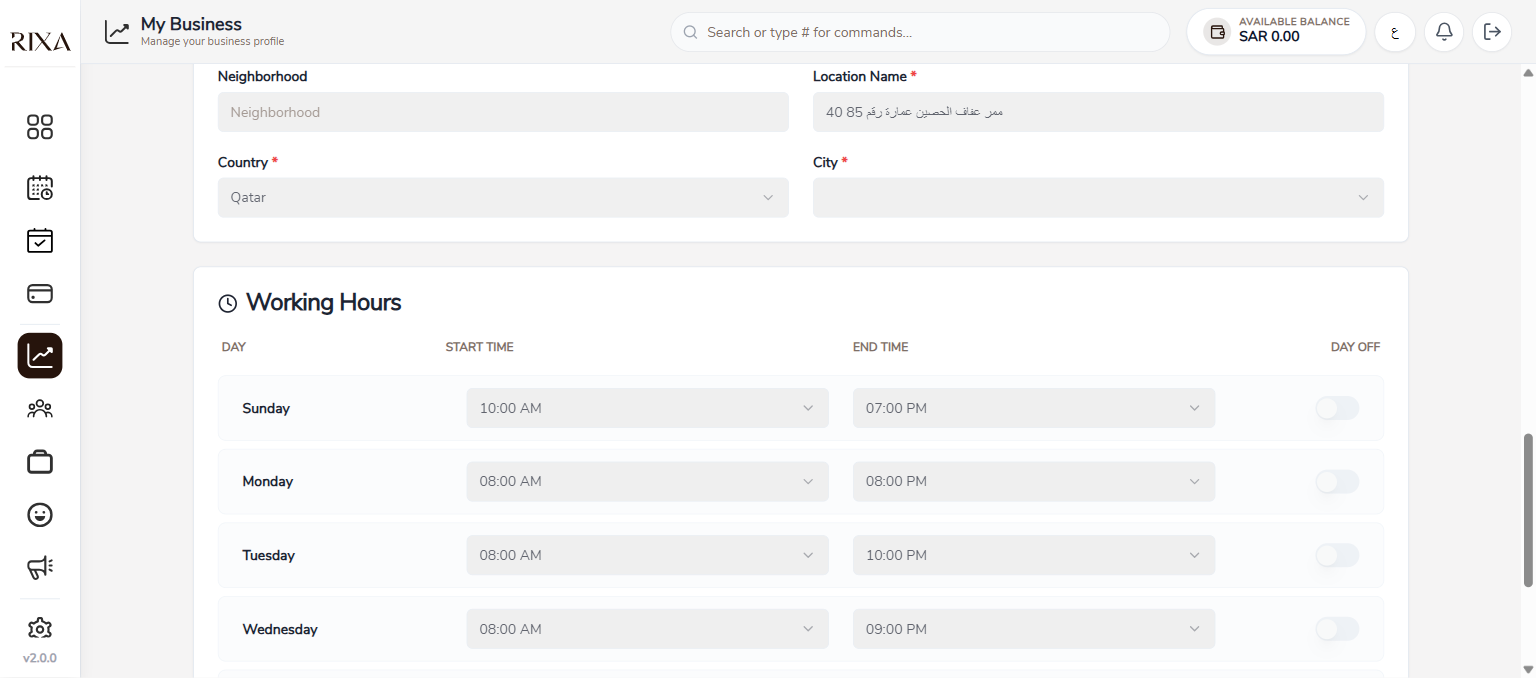
Staff Hours
Each staff member can have individual working hours. These are set separately from business hours and cannot exceed them. If your shop closes at 9 PM, a staff member's hours cannot go past 9 PM.
Setting Unavailability
Sometimes you need to block time off. Go to Availability and tap Add Unavailability.
One-Time Blocks
Use these for specific dates like holidays or personal days. Select the date, choose whether it is all day or a specific time window, and save.
Recurring Blocks
Use these for regular closures like every Friday afternoon. Set the recurrence pattern and the system will automatically block those times going forward.
All-Day vs Time Window
An all-day block marks the entire day as unavailable. A time window block only blocks specific hours, leaving the rest of the day open for bookings.
How Time Slots Work
Rixa generates available time slots in 15-minute intervals based on your business hours, staff hours, existing bookings, and unavailability blocks. Customers must book at least 4 hours in advance, so slots within the next 4 hours will not appear.
Tips for Managing Availability
Keep your hours up to date to avoid missed bookings. If you need a break between appointments, add buffer time to your service durations rather than blocking time manually.