
Booking Management
Last updated: 2026-04-12
This guide covers the full booking lifecycle from receiving a request to completing the service.
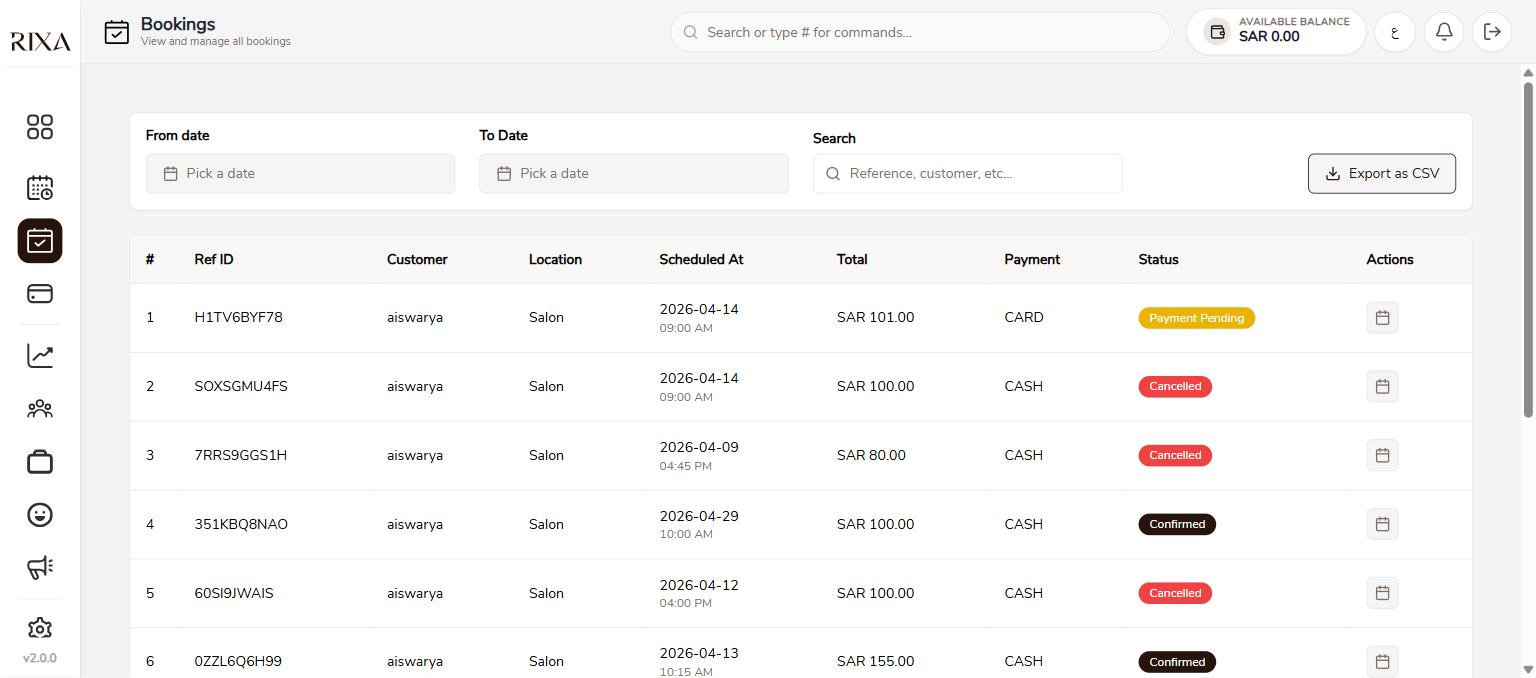
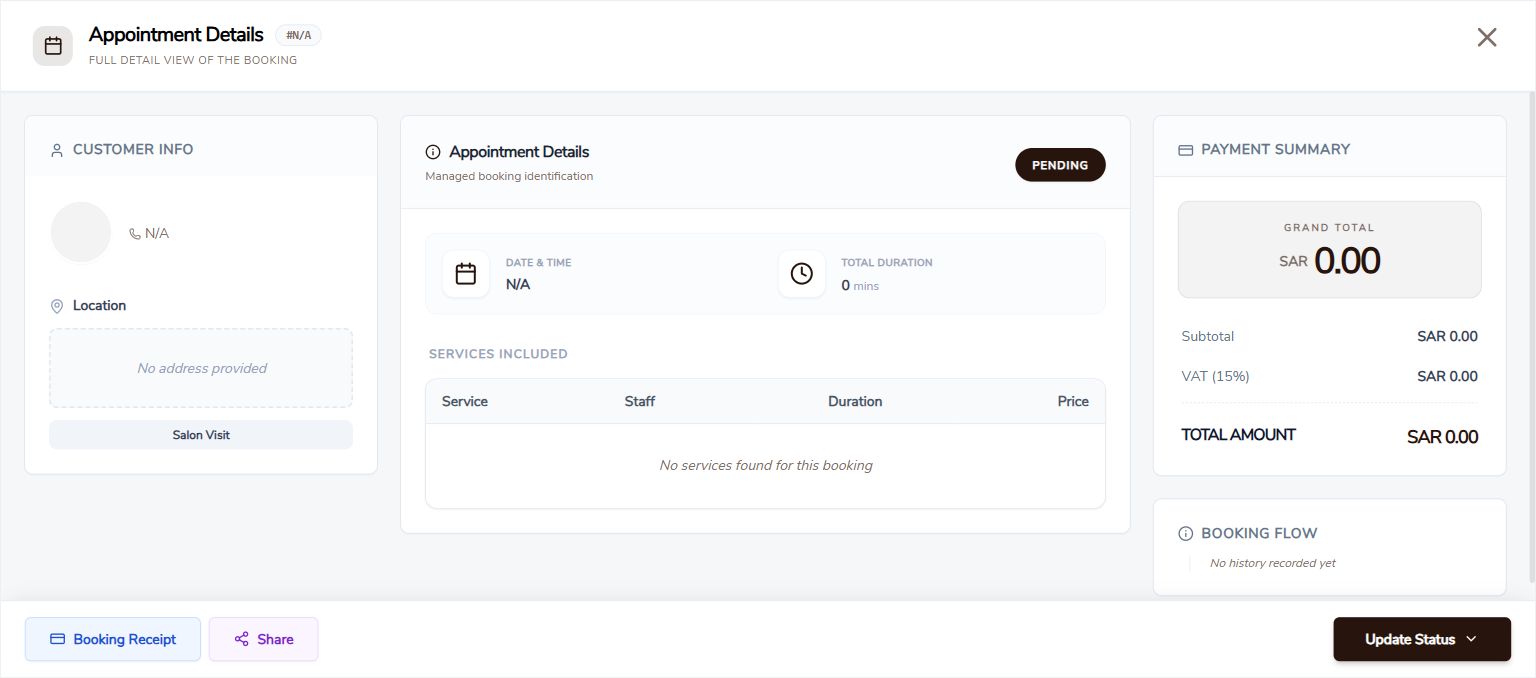
Booking Flow Overview
When a customer books your service, you receive a notification. Depending on your settings, you either manually confirm or the booking is auto-accepted.
Auto-Accept
If you enable auto-accept, bookings are automatically confirmed without you needing to take action. This is useful if you want a hands-off approach and trust your availability settings to prevent conflicts.
Confirming a Booking
If auto-accept is off, you will receive a pending booking notification. Open the booking and tap Confirm to accept it. You have 60 minutes to respond before the booking is auto-cancelled.
Completing a Booking
After providing the service, mark the booking as Completed. This triggers the payment to be finalized and your earnings to be added to your wallet.
Handling Cancellations
You can cancel a booking if needed, but keep in mind that provider-initiated cancellations result in a full refund to the customer. Only cancel when absolutely necessary.
No-Show
If a customer does not show up, mark the booking as No Show. Depending on your cancellation policy, the customer may be charged a penalty.
Rescheduling
If a customer requests a reschedule, you can update the booking with a new date and time. The customer will be notified of the change. Rescheduling follows the same rules as cancellations regarding the free window.
Invoices
Invoices are generated automatically for completed bookings. You can view them in the booking details and share them with customers if needed.