
Gallery & Media
Last updated: 2026-04-12
Your gallery is one of the first things customers see. Good photos help attract bookings.
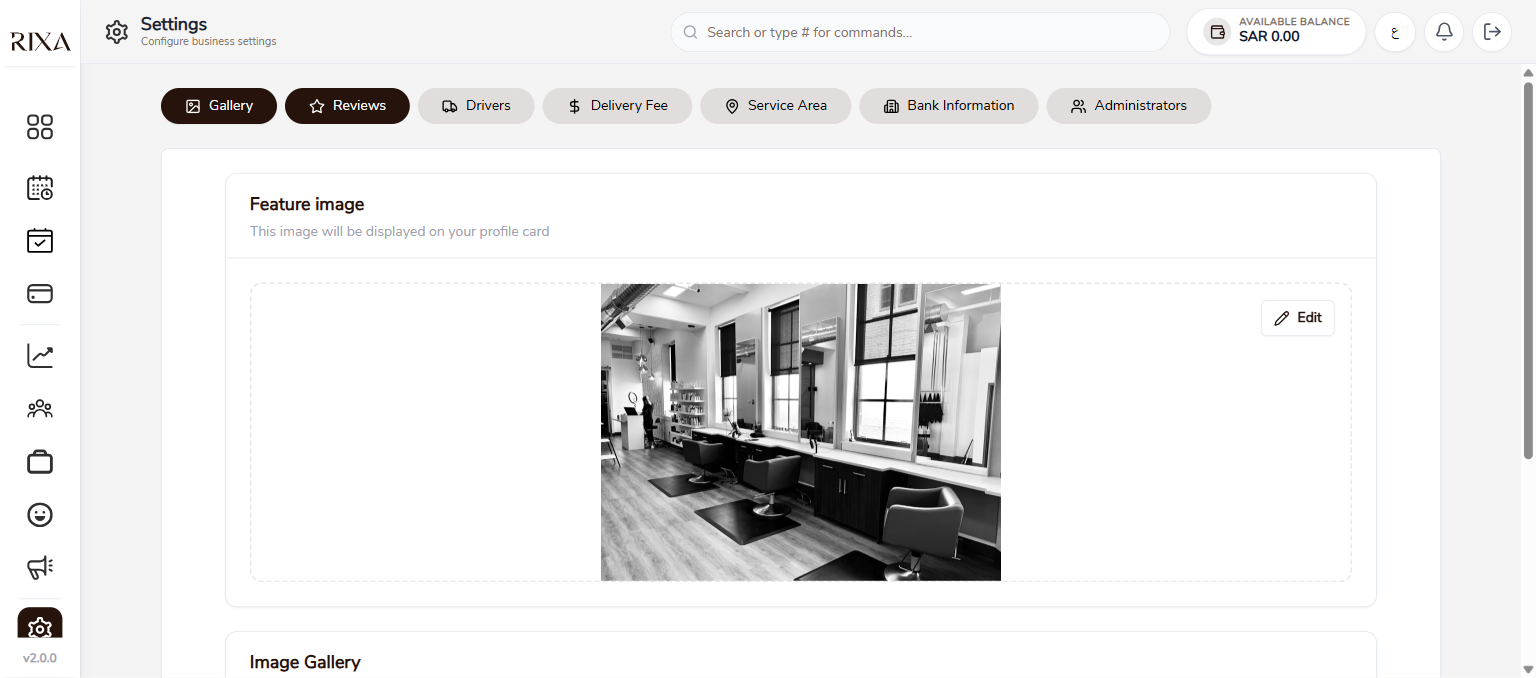
Uploading Photos
Go to Gallery in your app or backoffice and tap Upload. Select photos from your device. You can upload multiple images at once.
Feature Image
Set one photo as your feature image. This is the main photo shown on your profile card in search results. Pick your best work or a great shot of your space.
Reordering Images
Drag and drop your photos to change the order they appear in your gallery. Put your strongest images first since many customers only look at the first few.
Captions
Add captions to your photos to describe what is shown. This helps customers understand your work and the services you offer.
Deleting Photos
Tap on any photo and select Delete to remove it from your gallery. Deleted photos cannot be recovered.
Supported File Types
You can upload JPEG, PNG, and WebP images. Keep images high quality but reasonable in file size for fast loading.